
Cherry Studio - Desktop AI Client
Cherry Studio Tutorial — Connecting the desktop AI client to XAPI, one-click API Key entry. Built-in 30+ professional AI assistants, covering various work scenarios.
Chat Settings Options
In the XAPI console's System Settings -> Chat Settings, you can add the following quick options for one-click filling into Cherry Studio on the token management page:
{ "Cherry Studio": "cherrystudio://providers/api-keys?v=1&data={cherryConfig}" }🍒 Cherry Studio is a powerful desktop AI client designed for professional users, integrating 30+ industry-specific intelligent assistants to meet the needs of various work scenarios and significantly improve work efficiency.
- Official Website: https://cherry-ai.com
- Download Link: https://cherry-ai.com/download
- Official Documentation: https://docs.cherry-ai.com
XAPI Integration Method
Parameter Configuration
Provider Type: Types supported by XAPI API Key: Obtained from XAPI API Address: XAPI Site Address
Please use your self-deployed XAPI, or ensure that the service provider has a XAPI service with legal upstream authorization and compliance obligations. Do not integrate API addresses or keys from unknown sources into a production environment.
Graphical Guide
-
Copy API key in XAPI
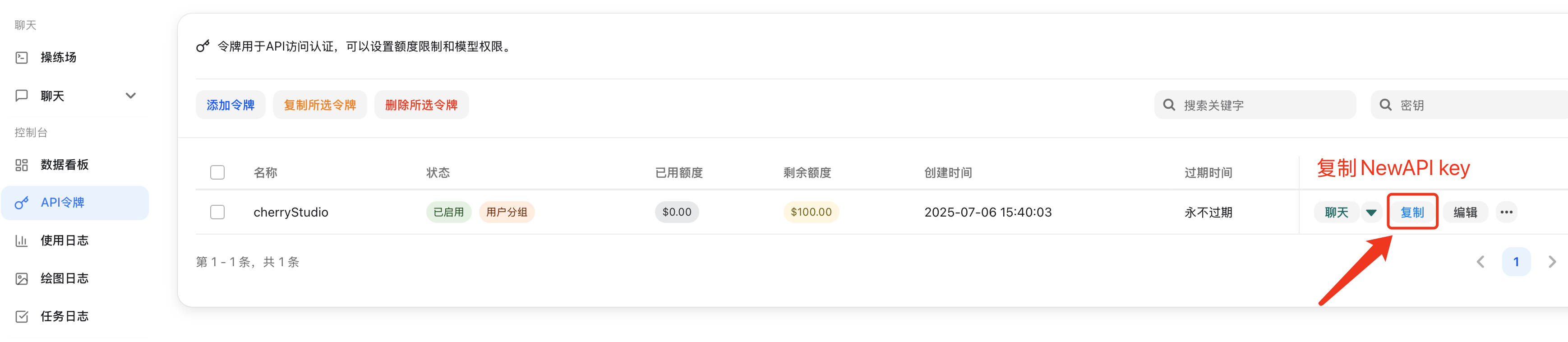
-
Add Provider
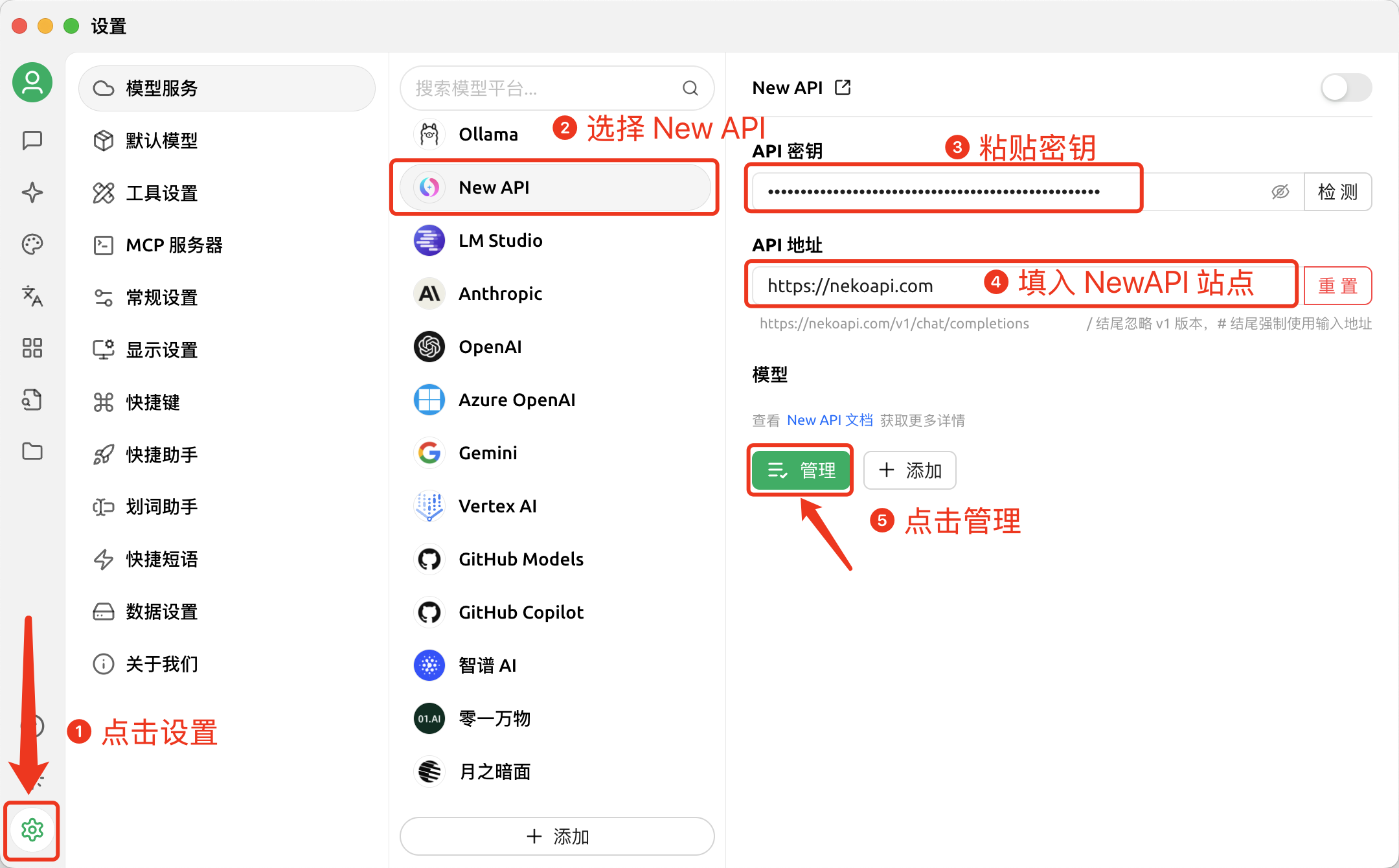
-
Add Model
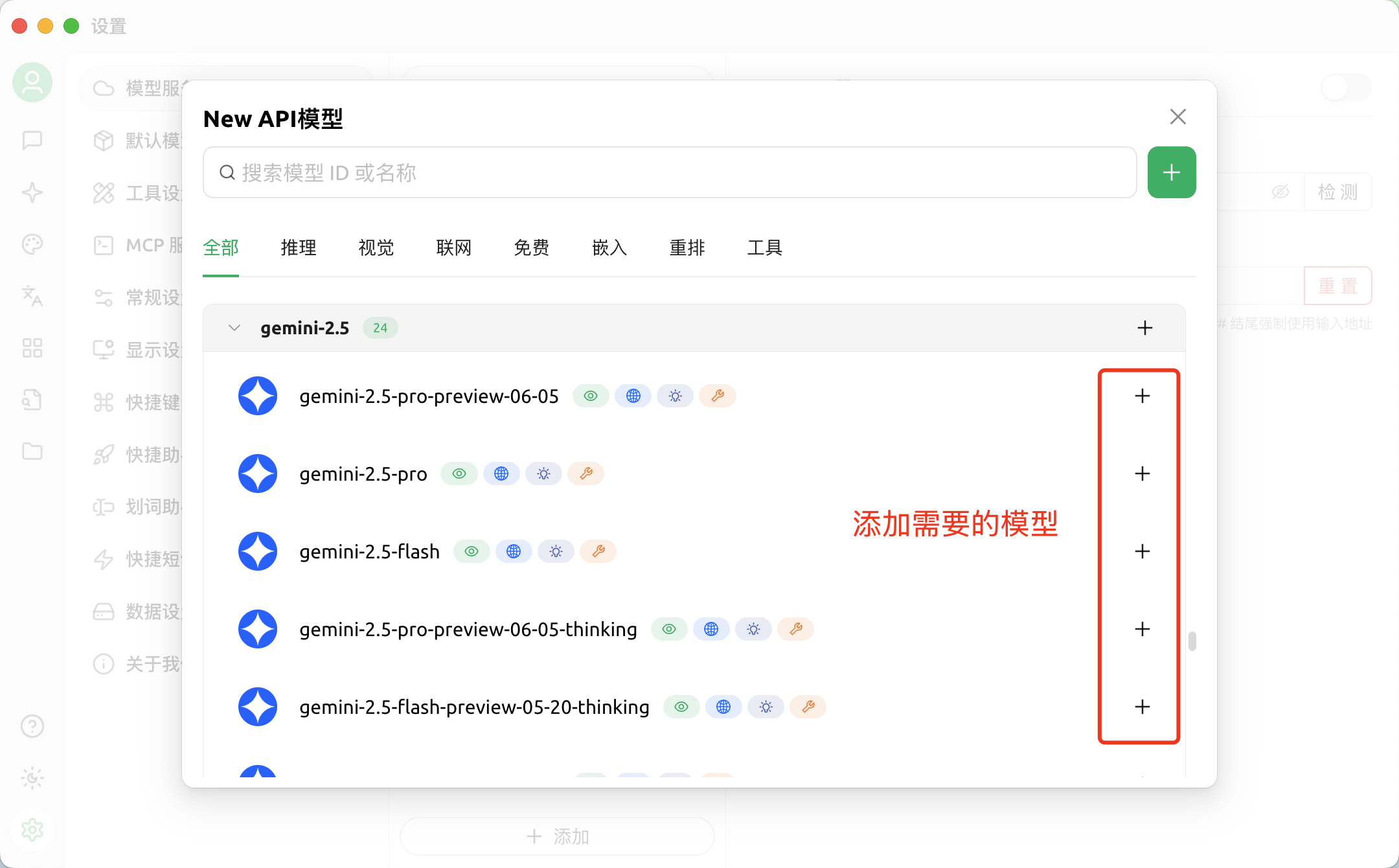
-
Return to Chat Page
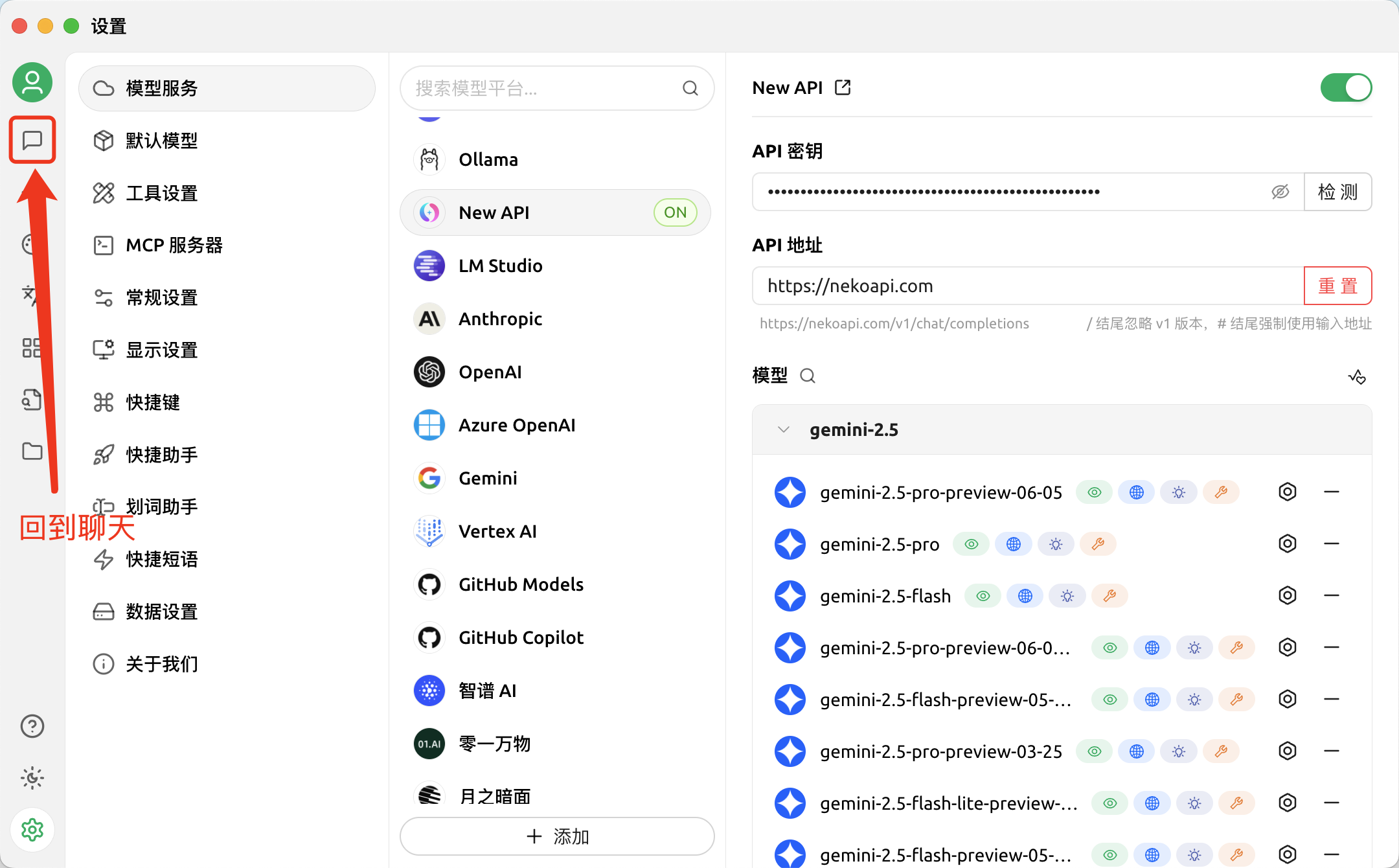
-
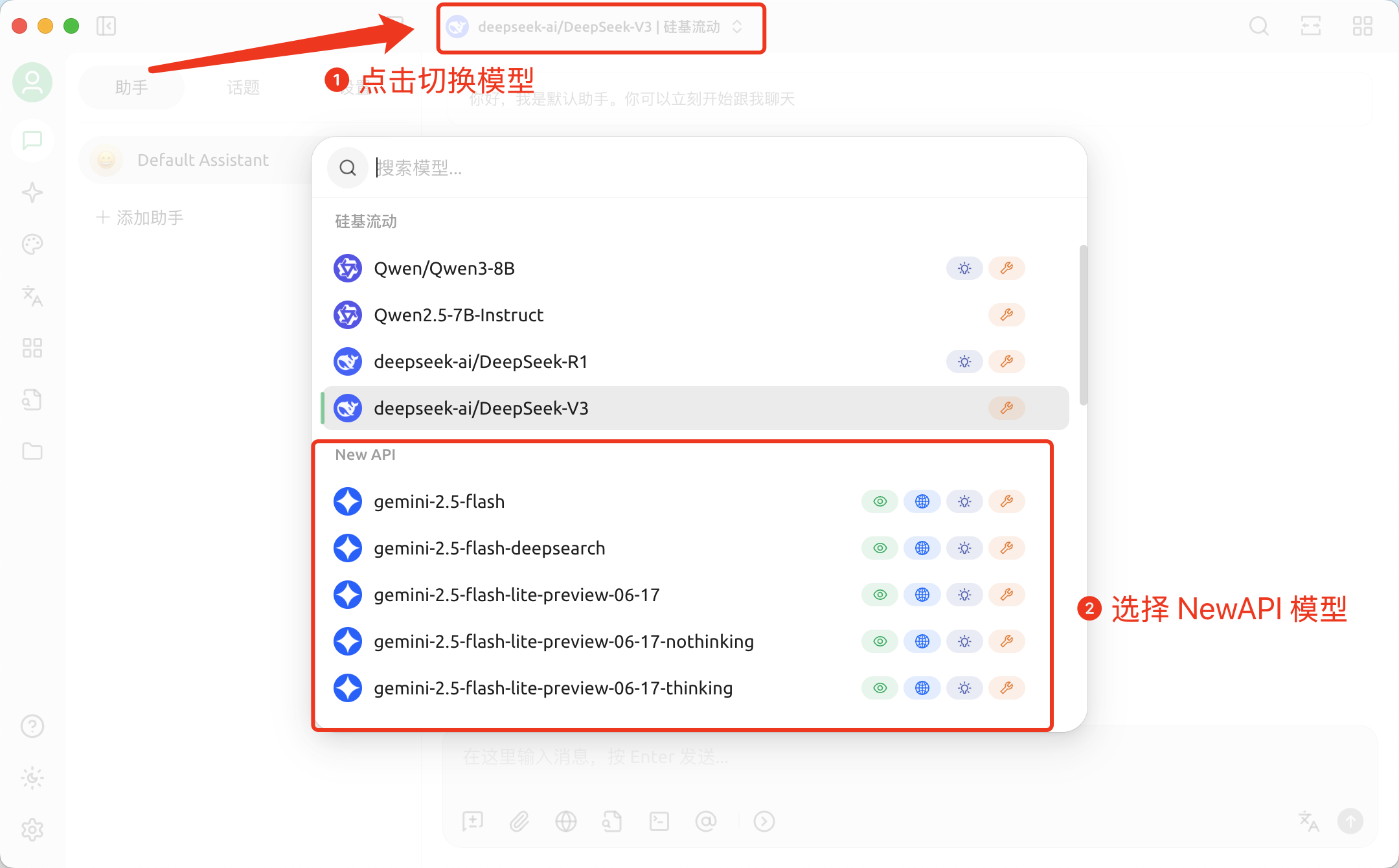
Switch XAPI Model
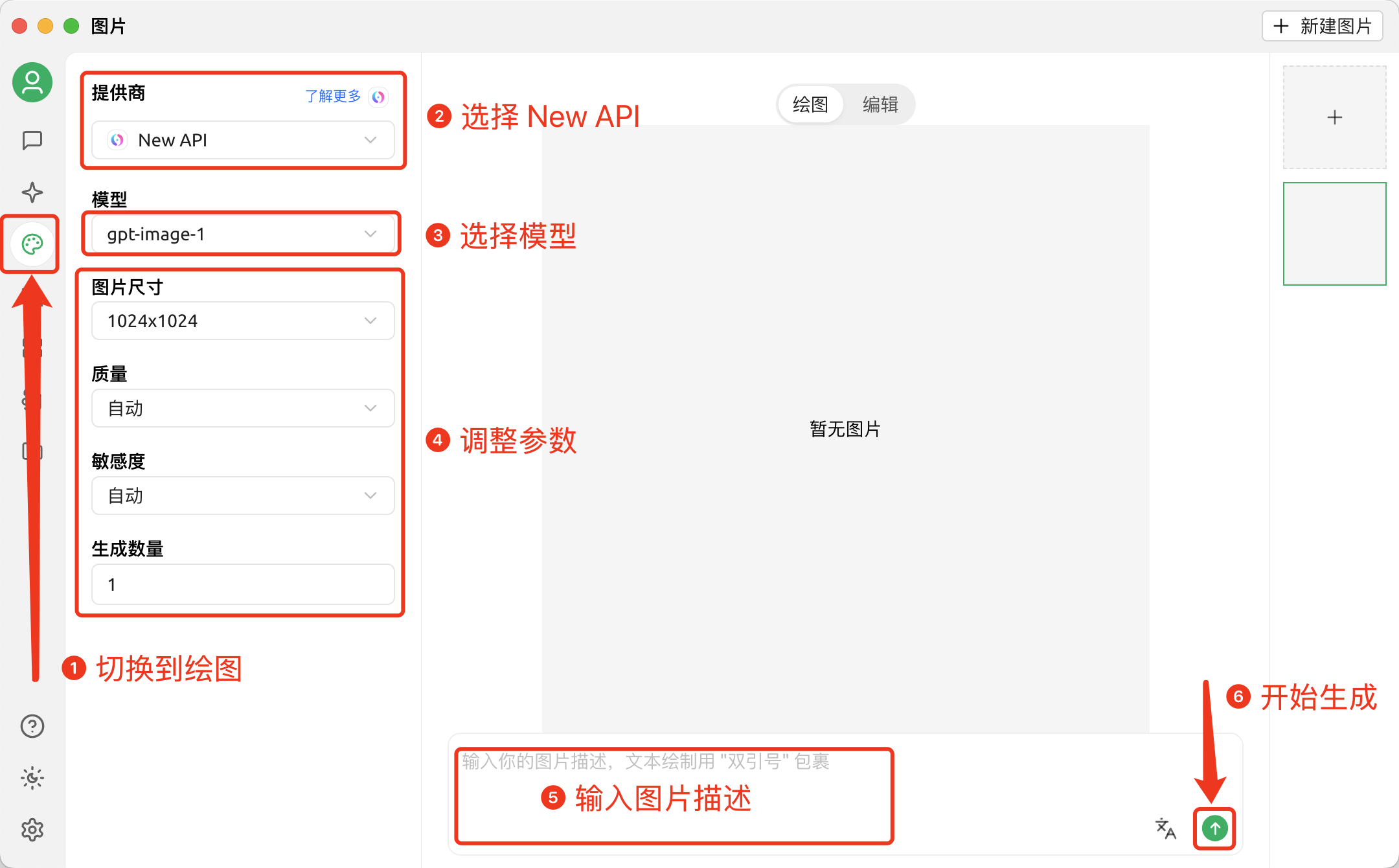
Drawing in Cherry Studio
-
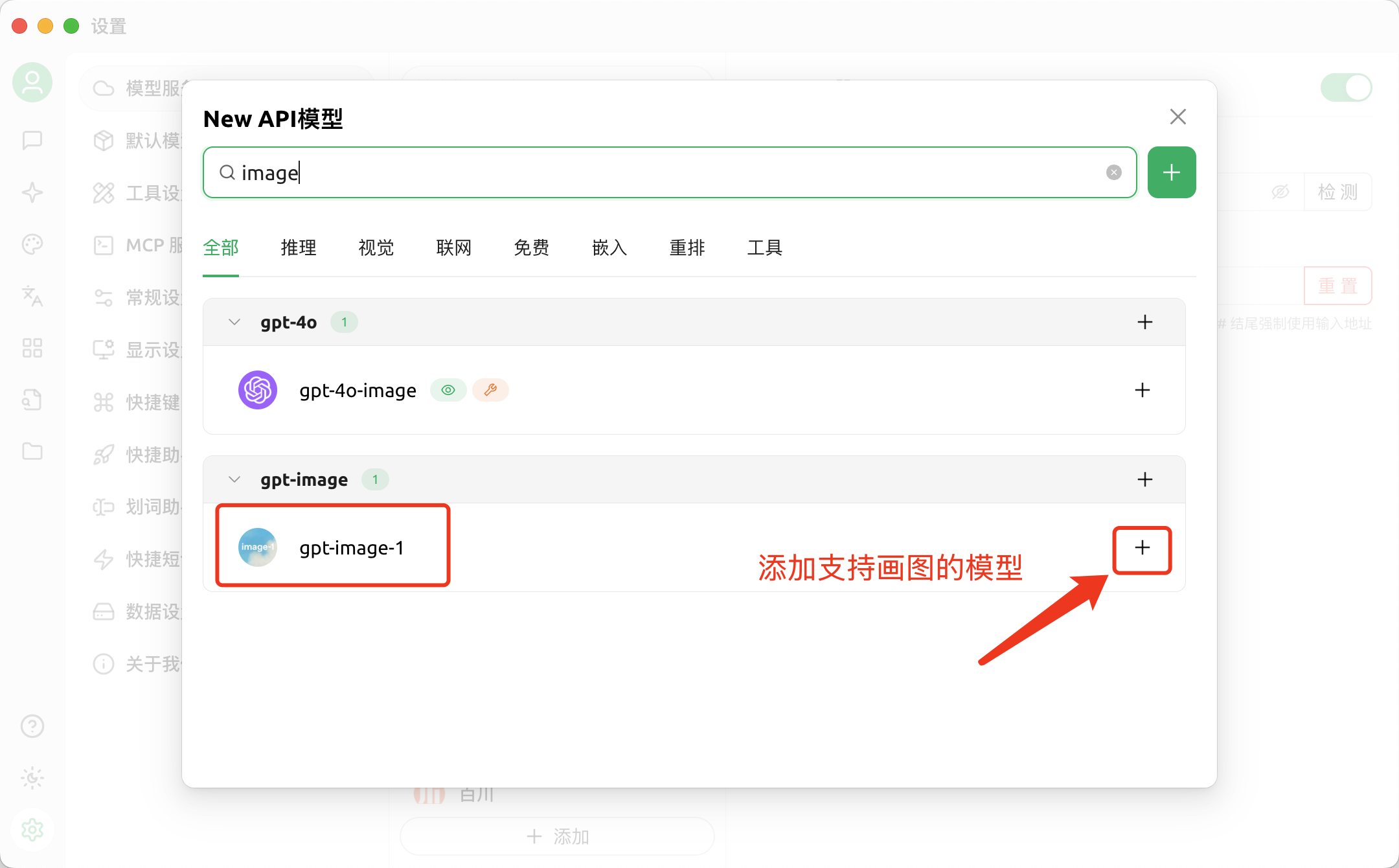
First, add models that support drawing
-
Draw
CC Switch - All-in-One AI CLI Management Tool
CC Switch tutorial — a cross-platform tool for unified management of Claude Code, Codex & Gemini CLI provider configs, MCP servers, and system prompts. One-click import from XAPI.
DeepChat - Commercial-Friendly Full-Featured AI Agent Client
DeepChat guide — connect this open-source, commercial-friendly full-featured AI Agent client to XAPI and import DeepChat configuration with DeepLink in one click.